Customising email design
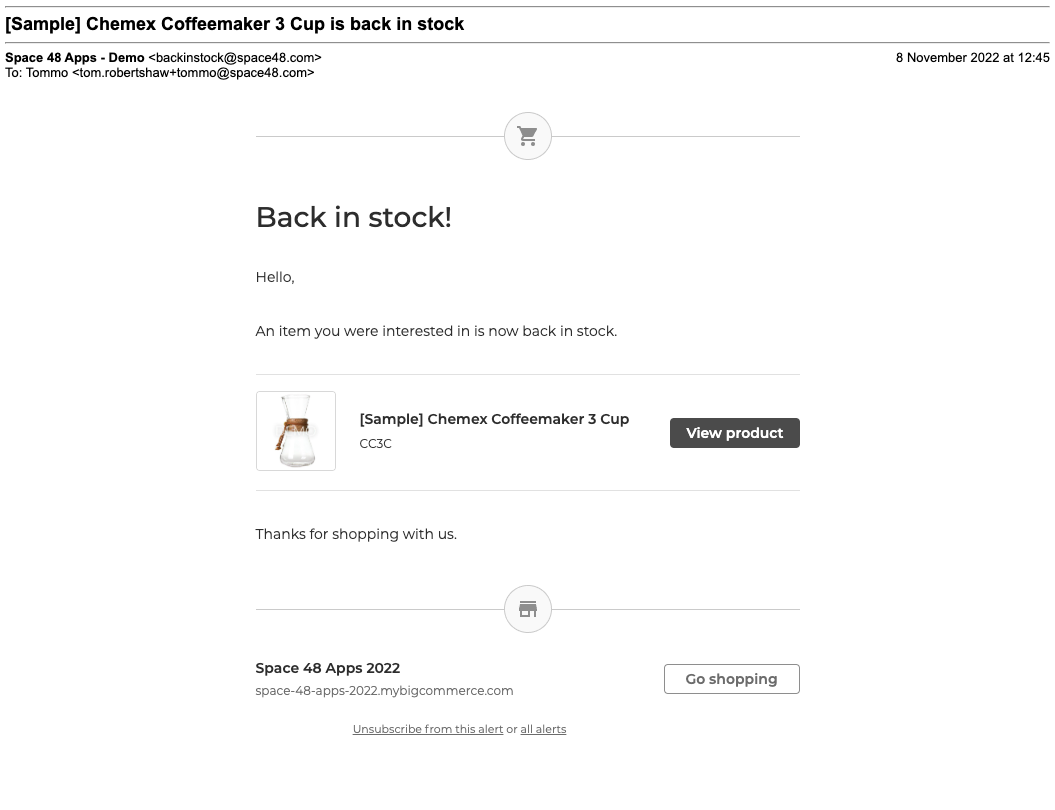
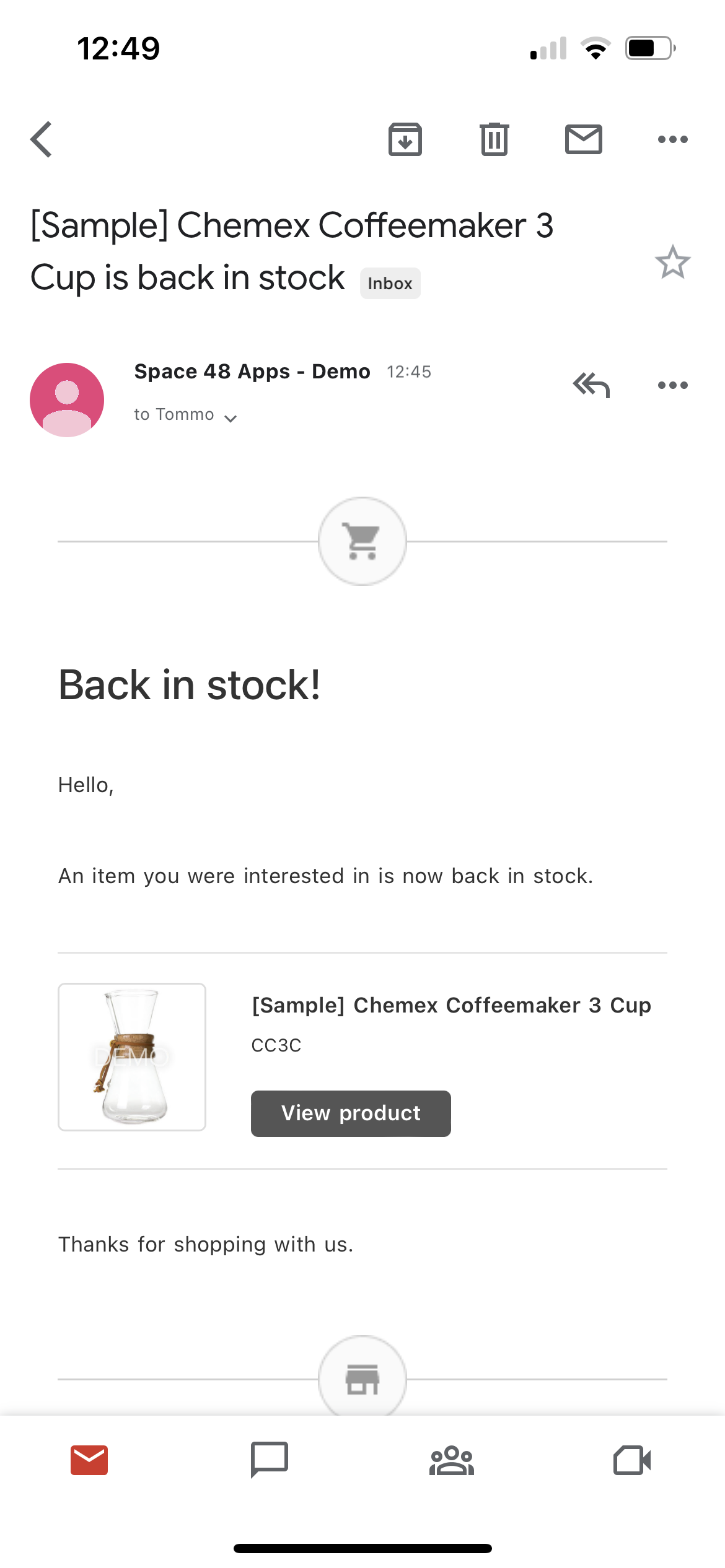
Back in Stock Alerts includes a responsive notification template designed to work across common email clients and sit comfortably alongside BigCommerce's native emails. You can adjust its phrases or replace the complete template.
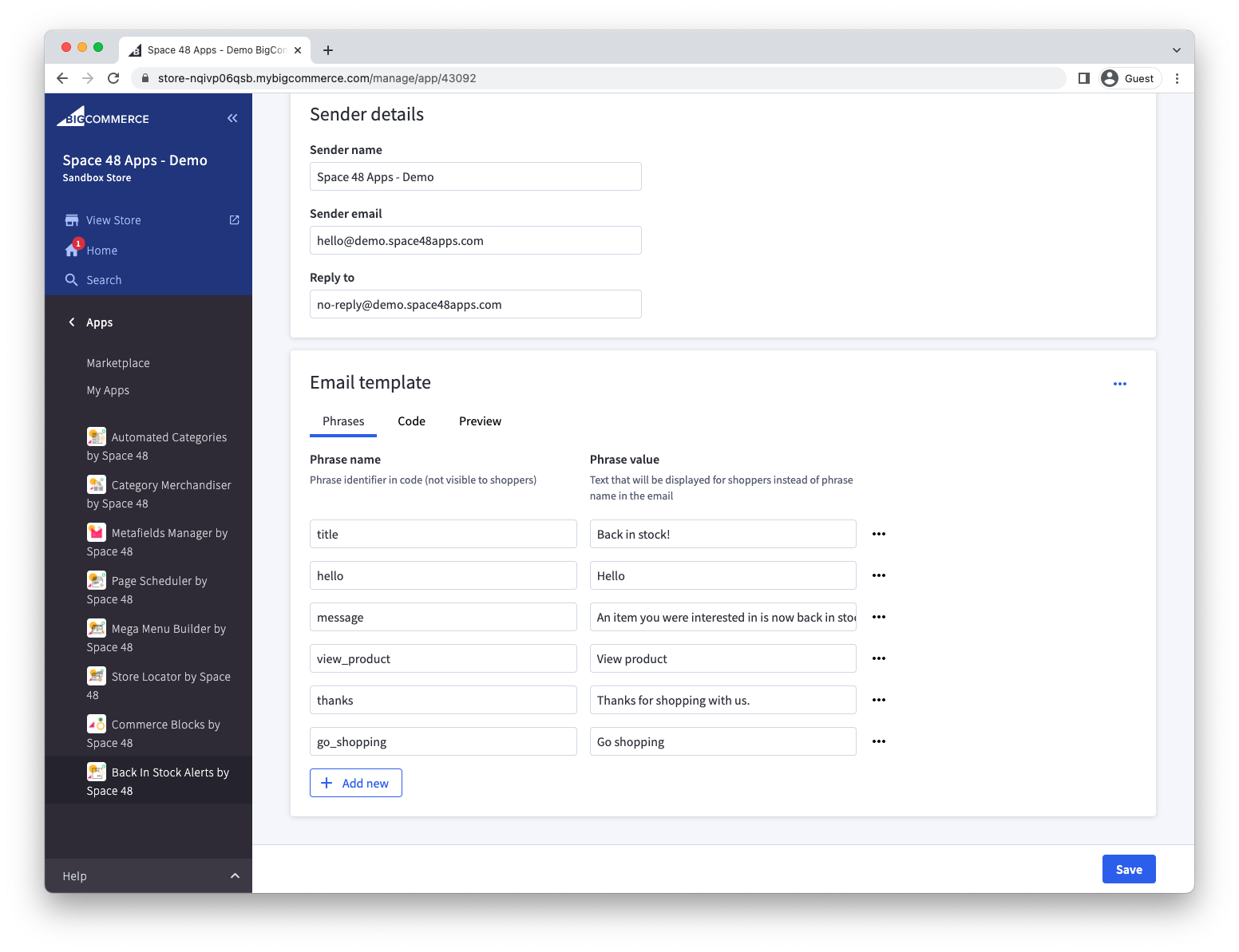
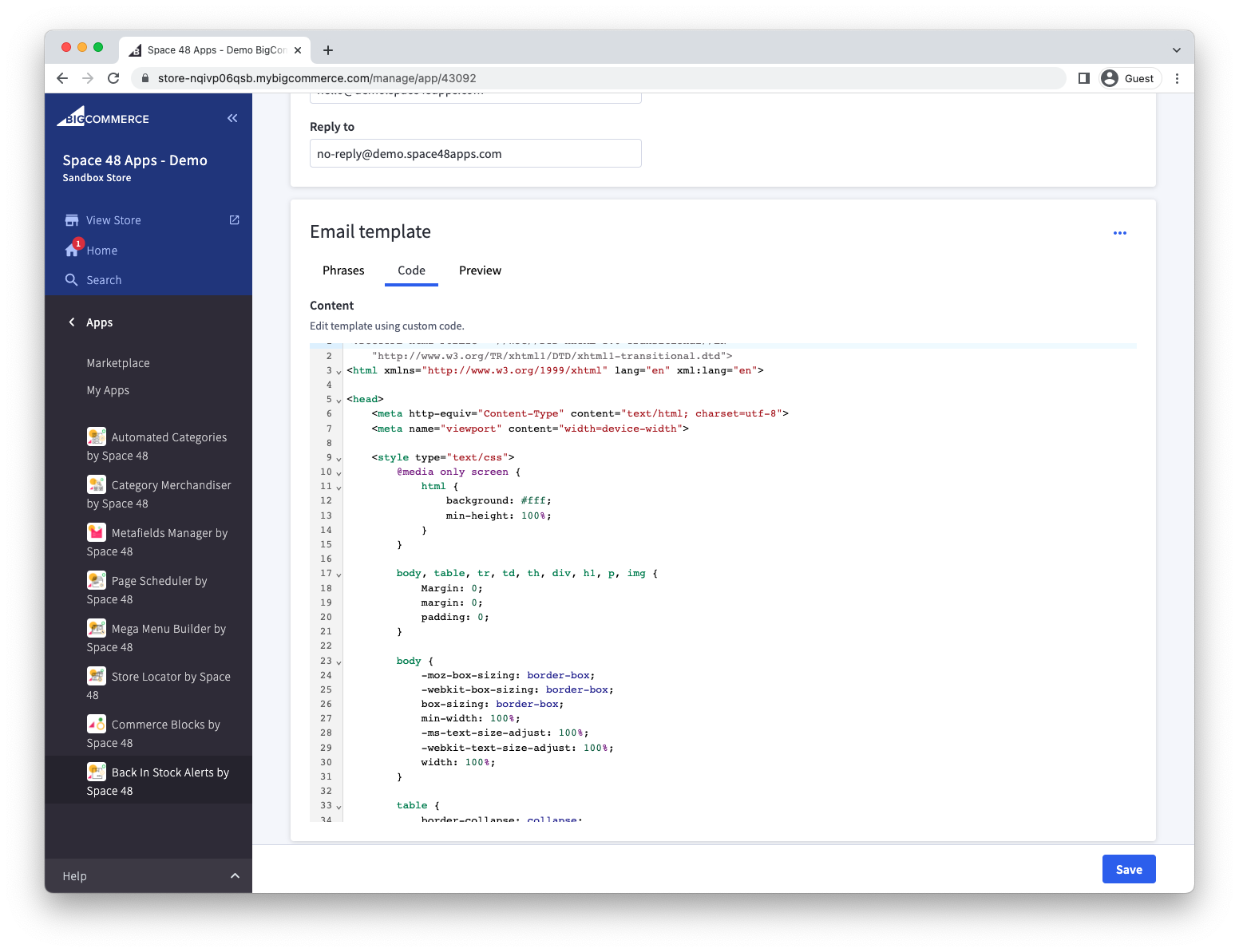
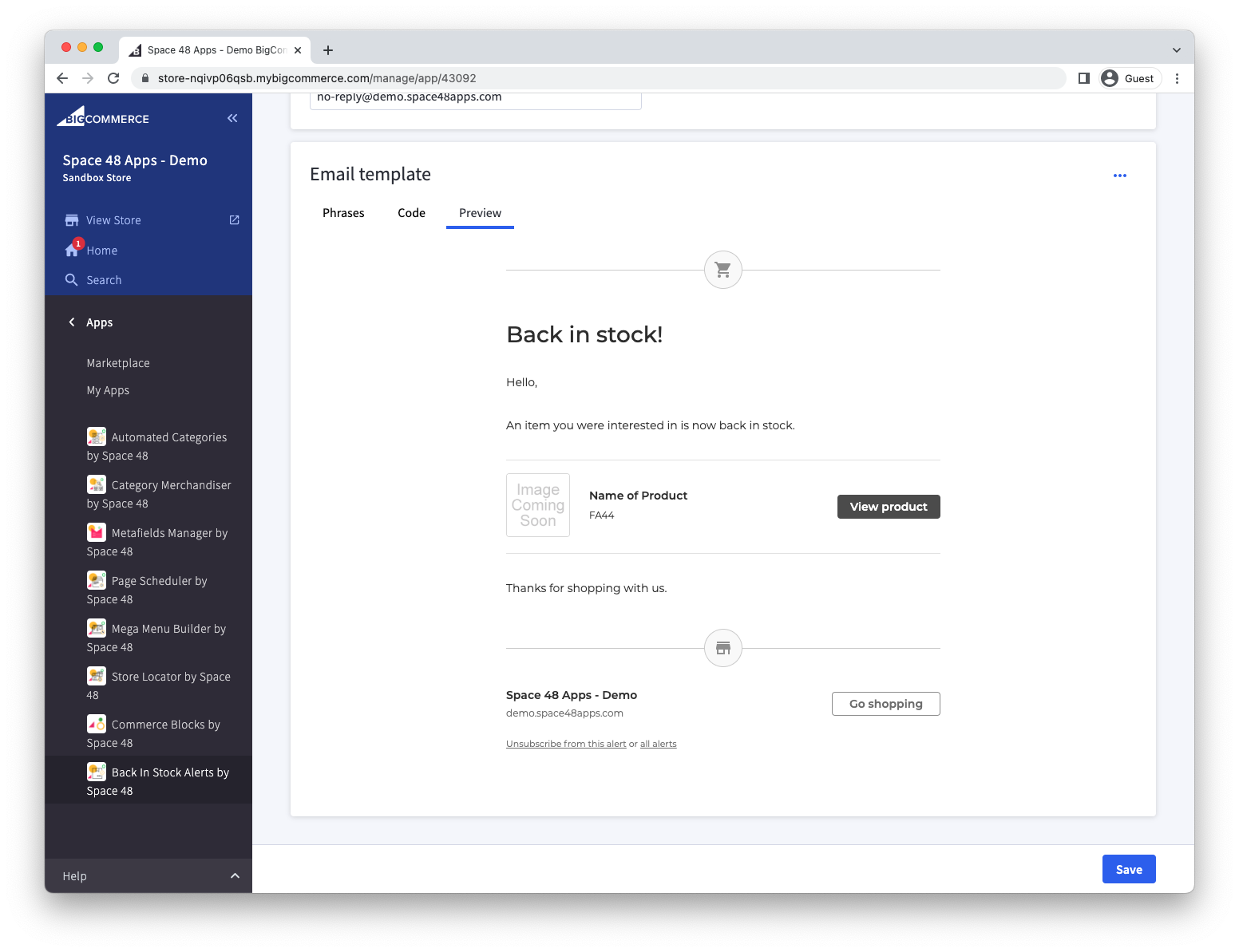
In the Email template panel, use Phrases for copy, Code for the Handlebars/HTML template and Preview to check the rendered email. Save the settings when the result is ready. Use Restore default template if you need to return to the supplied design.
Update phrases
Use the Phrases tab for straightforward text changes. Add or edit a phrase, then reference its name in the template with the lang helper:
Edit the template
The template editor gives you access to the complete notification email. You can adapt the default or replace it with your own HTML and Handlebars template. See the full list of supported Handlebars attributes.
If a change breaks the template, select Restore default template to return to the supplied version.
Template helpers
| Helper | Purpose | Example |
|---|---|---|
lang | Outputs a phrase configured in the app. | {{lang 'title'}} |
date | Outputs a formatted date or time in the store's timezone by default. | {{date 'Y'}} |
debug | Displays all available values while developing a template. Triple braces render the output as HTML. | {{{debug}}} |
The date helper accepts a PHP date-format string and, optionally, a date value to format:
Store variables
For a multi-storefront store, these values are taken from the storefront associated with the alert.
| Variable | Description |
|---|---|
store.name | Store name. |
store.path | Store URL. |
store.domain_name | Store URL without https://. |
store.logo.url | Storefront logo URL. |
store.logo.title | Configured alternative text for the storefront logo. |
Product variables
| Variable | Description |
|---|---|
product.name | Product name. |
product.price | Formatted product price. |
product.sku | Product or selected variant SKU. |
product.inventory_level | Current inventory level. |
product.url | Tracked link that redirects to the product on your storefront. |
product.image_url | Product image URL. |
product.variant_options | Selected variant options, such as Colour: Green, Size: Small. |
Product and variant metafields
Access a product metafield by namespace and key:
Access a metafield belonging to the selected variant through product.variant:
This lets you add descriptions, specifications, badges, delivery messages or other product data to the notification.
JSON metafields
Use dot notation to access a property in a JSON object. For this value:
{"value": "Large"}
Use:
For an array of objects, add the zero-based array index:
[{"colour": "red"}, {"colour": "blue"}]
Or loop through every item:
For an array of plain values, use {{.}} for the current value:
HTML metafields
Handlebars escapes HTML when you use double braces. Use triple braces only when you trust the metafield's HTML and want it rendered in the email:
Dotdigital templates
In a Dotdigital template, prefix these variables with data.:
Preview and publish
- Open the preview tab after editing the phrases or template.
- Check the layout at desktop and mobile widths.
- Confirm that phrases, product details, metafields, links and calls to action render correctly.
- Save the changes to make the design active.
To change the sending provider or domain, see Email send methods.