Quick start
After installing Back in Stock Alerts, complete the three dashboard setup steps before collecting alert requests.
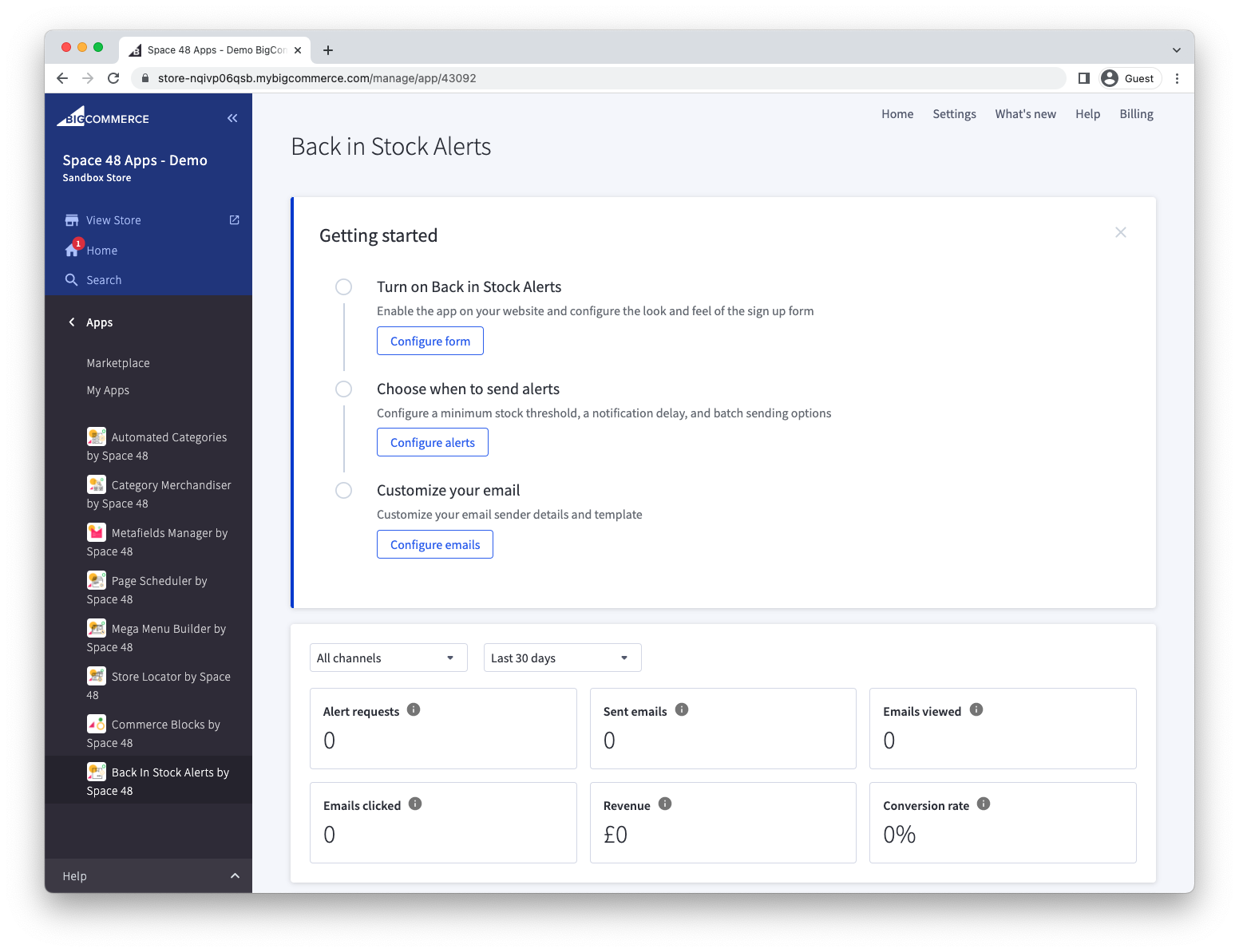
1. Configure the sign-up form
- Open the sign-up form settings.
- Enable Alert requests.
- Choose an inline form or a modal.
- Review the customer-facing text, marketing-consent fields and button styles.
- Save the settings.
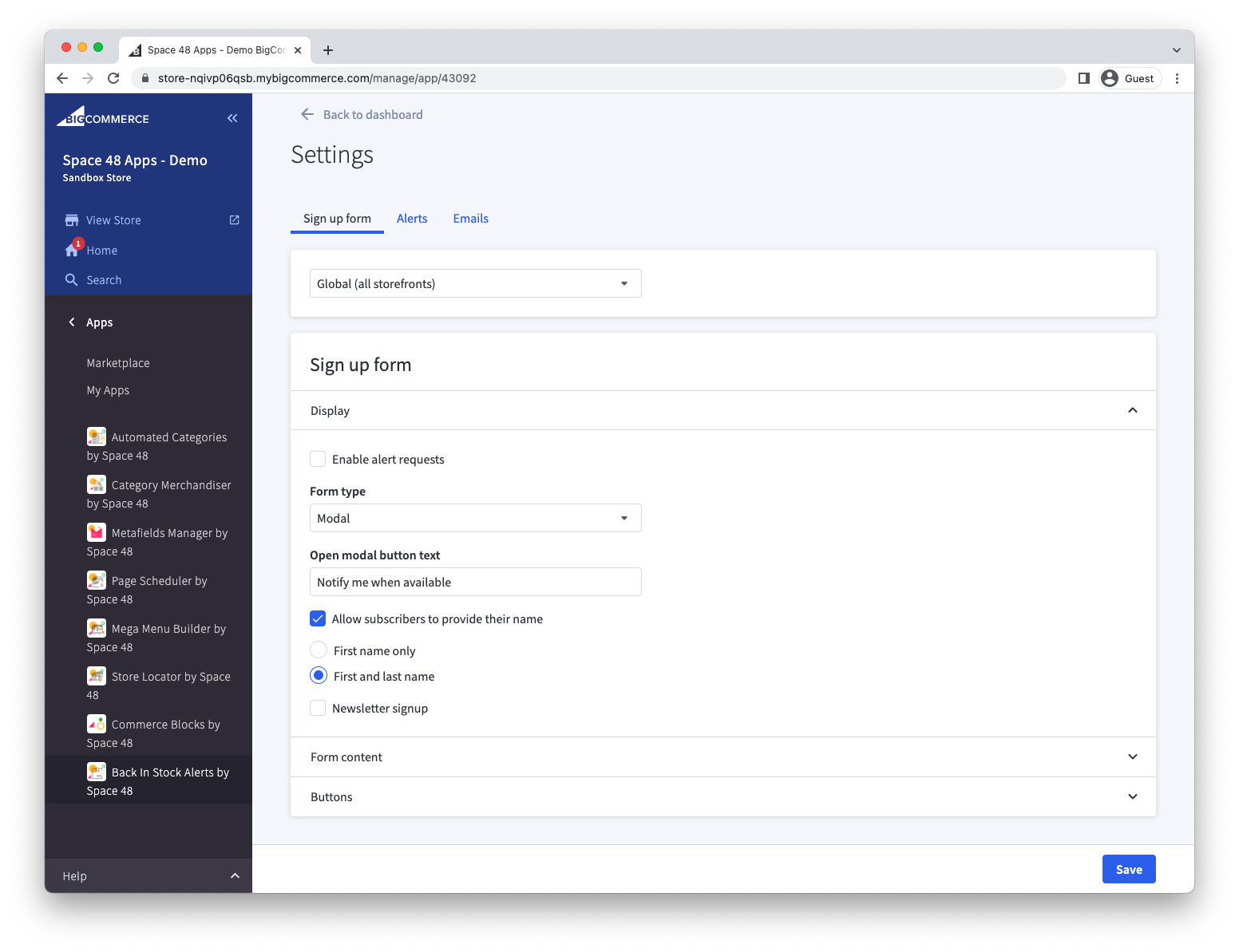
See Designing the sign-up form for every display option.
2. Choose when to send alerts
Back in Stock Alerts can email every waiting customer as soon as stock returns, or notify smaller groups over time.
- Open the notification settings.
- Choose the strategy that fits the stock levels and demand for your products.
- Save the settings.
You can leave notifications disabled while you finish configuring the app.
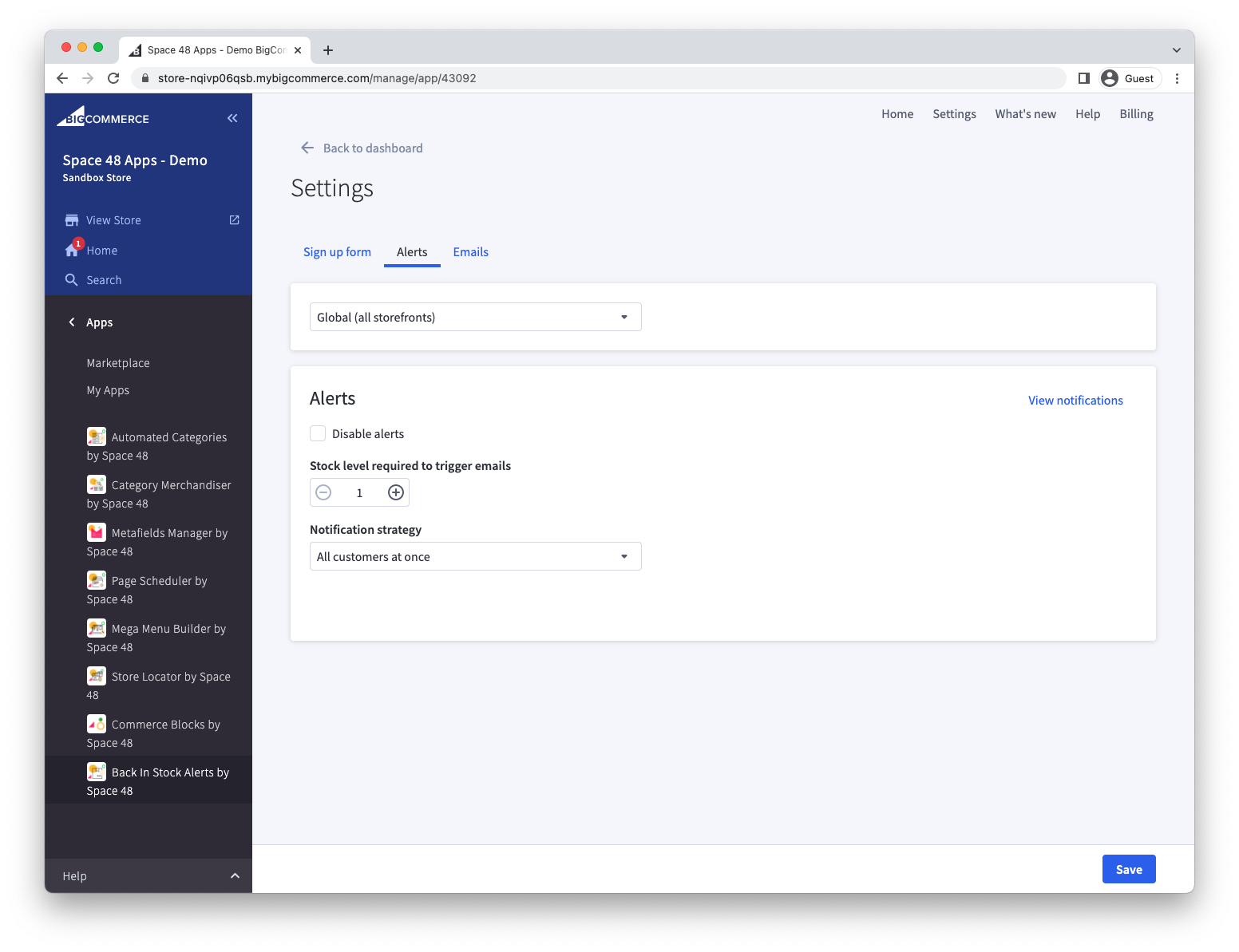
See Change when notification emails are sent for guidance on each strategy.
3. Prepare the notification email
- Set the sender name and reply-to address.
- Review the email phrases and template.
- Preview the email, then save your changes.
The default delivery method uses Hypa's email provider. To send from your own domain, configure an SMTP service.
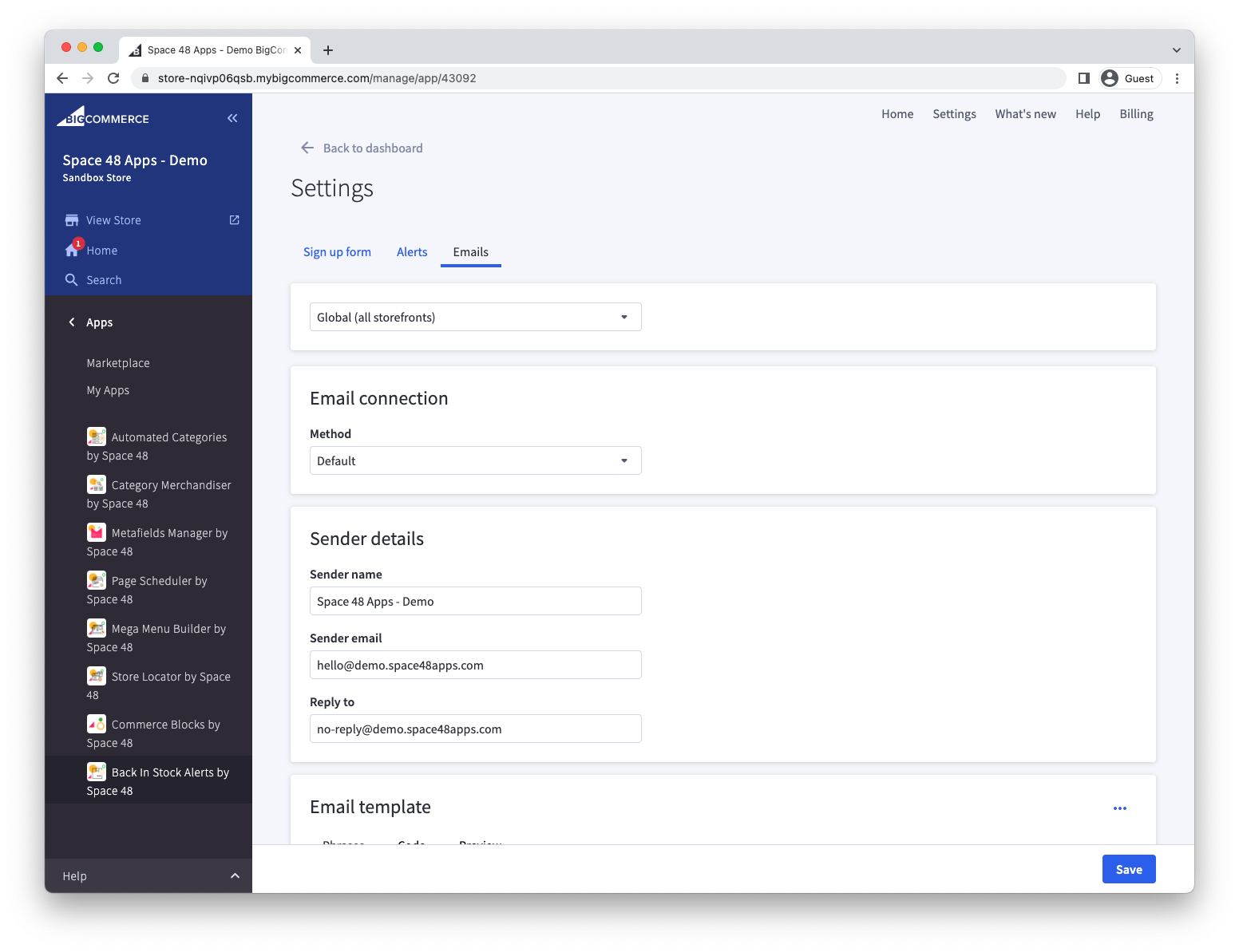
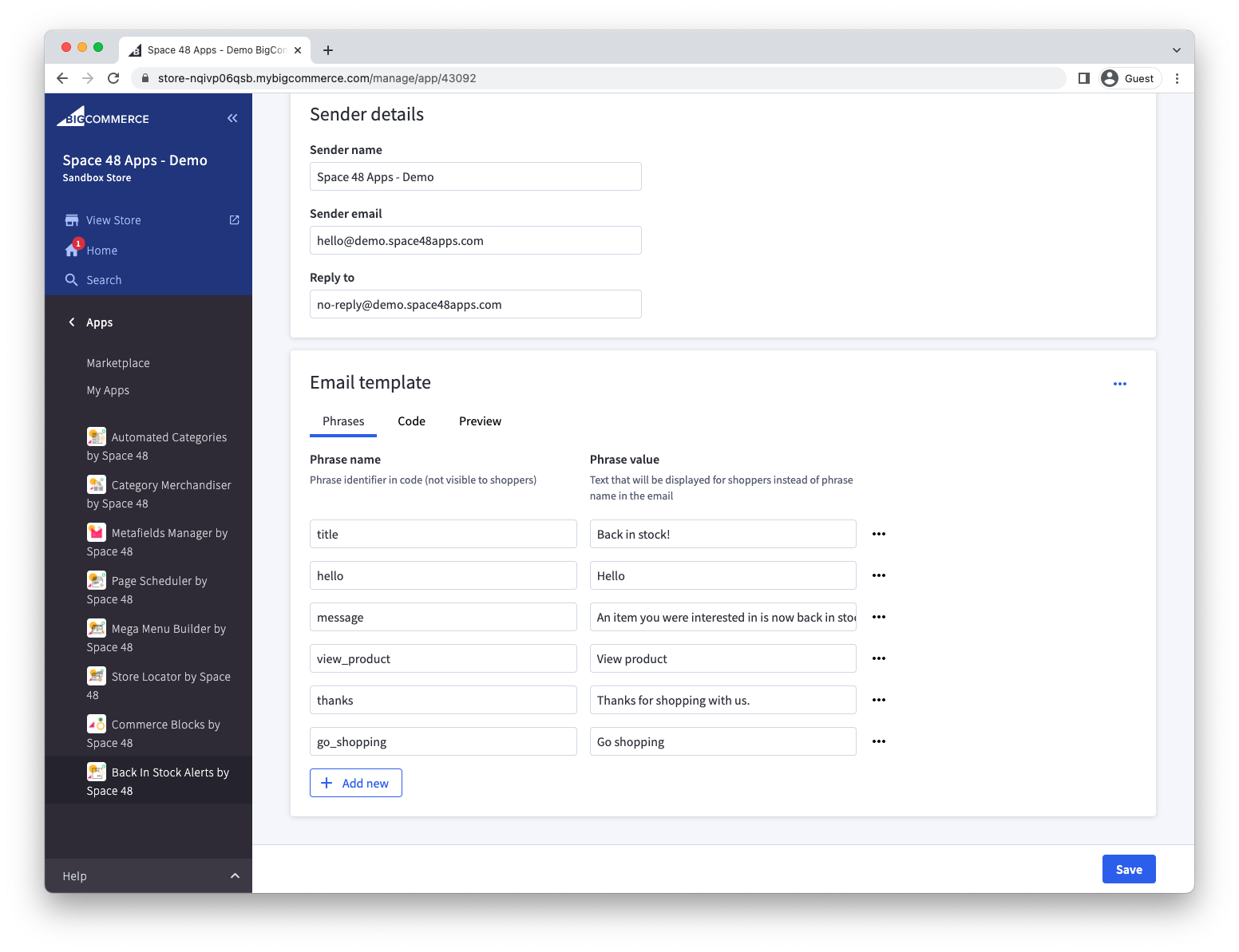
See Customising email design and Email send methods for the available options.
After these steps, confirm that the sign-up form appears on an out-of-stock product and submit a test alert request.